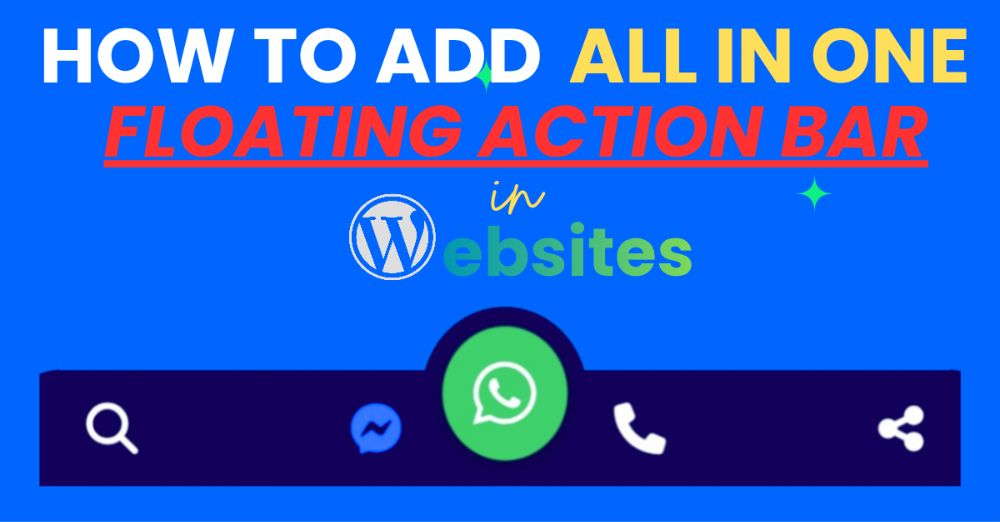
If you’ve ever wanted to make your WordPress site more interactive — giving visitors a quick way to chat on WhatsApp, message via Facebook Messenger, call you, share content, or search your site — then this little design trick is for you.
I recently built a simple yet powerful feature called the All-in-One Smart Action Bar, and trust me — it’s a total game-changer for websites that care about user engagement and accessibility.
Why Add It to Your WordPress Site?
A floating action bar is a small toolbar that sticks to the bottom of your website and stays visible as the user scrolls.It gives people instant access to the most important actions — like contacting you, chatting, or sharing your content — without needing to scroll up or hunt through menus.
Think of it as a friendly little “assistant” that’s always ready to help your visitors take action.
Why Add It to Your WordPress Site?
Here’s why this smart bar works so well:💬 Instant WhatsApp & Messenger chat: No need for bulky plugins — direct links do the job.
- Click-to-call button: Great for service providers or local businesses.
- Share button: Uses the native Web Share API (on mobile) to share your page in one tap.
- Search: A built-in global search for your entire site.
- Lightweight: It’s pure HTML, CSS, and JavaScript — no plugin overhead.
- Customizable: Works perfectly with GeneratePress and other lightweight themes.
In short — it keeps your visitors connected and your site clean.
How to Add It (Step-by-Step)
Here’s the good news: you don’t need to be a developer to install it.
If you can copy and paste, you can make it work.
Step 1 – Copy the Code
Copy the HTML, CSS, and JS code of the Smart Action Bar (provided below).
<div class="sticky-whatsapp-bar">
  <a href="javascript:void(0);" class="icon share" id="share-btn" title="Share"><i class="fa fa-share-alt"></i></a>
  <a href="tel:+91Xxxxxxxxxx" class="icon call" title="Call"><i class="fa fa-phone"></i></a>

  <div class="center-whatsapp">
    <a href="https://wa.me/+91xxxxxxxxxx" target="_blank" class="whatsapp-btn" title="Chat on WhatsApp">
      <i class="fa-brands fa-whatsapp"></i>
    </a>
  </div>

  <a href="https://m.me/your-Facebook-id-or-page" target="_blank" class="icon messenger" title="Messenger">
    <i class="fa-brands fa-facebook-messenger"></i>
  </a>

  <a href="/?s=" class="icon search" title="Search"><i class="fa fa-search"></i></a>
</div>

<script>
  document.getElementById('share-btn').addEventListener('click', async () => {
    if (navigator.share) {
      try {
        await navigator.share({
          title: document.title,
          text: "Check this out:",
          url: window.location.href,
        });
      } catch (err) {
        console.log("Sharing cancelled or failed.");
      }
    } else {
      alert("Sharing not supported on this device.");
    }
  });
</script>
Step 2 – Add via Generate Press Hook
In your WordPress Dashboard:
- Go to Appearance → Elements → Add New → Hook
- Choose the hook location: wp_footer
- Paste the full code
- Set Display Rules → Entire Site
- Click Publish
- That’s it — your bar will appear on every page.
Step 3 – Add Font Awesome (for icons)
In your <head> area or Customizer’s “Additional Scripts” section, add this line:
<link rel="stylesheet" href="https://cdnjs.cloudflare.com/ajax/libs/font-awesome/6.5.0/css/all.min.css">Step 4 – Customize
Change links, icons, or colors in the CSS to match your brand.You can easily update the WhatsApp number, Messenger link, or call action.
Step 5 – Add the CSS Styling
- Go to Appearance → Customize → Additional CSS
- Paste this entire CSS:
/* Hide on desktop */
.sticky-whatsapp-bar {
  display: none;
}

/* Mobile view only */
@media (max-width: 768px) {
  .sticky-whatsapp-bar {
    position: fixed;
    bottom: 0;
    left: 0;
    right: 0;
    background: #0b1551;
    display: flex;
    justify-content: space-between;
    align-items: center;
    padding: 8px 30px;
    z-index: 9999;
    border-top-left-radius: 20px;
    border-top-right-radius: 20px;
  }

  .sticky-whatsapp-bar .icon {
    color: white;
    font-size: 20px;
    text-decoration: none;
    transition: 0.3s;
  }

  .sticky-whatsapp-bar .icon:hover {
    color: #25d366;
  }

  .center-whatsapp {
    position: absolute;
    left: 50%;
    transform: translateX(-50%) translateY(-20%);
    background: #0b1551;
    border-radius: 50%;
    padding: 8px;
  }

  .whatsapp-btn {
    background: white;
    border-radius: 50%;
    padding: 12px;
    display: flex;
    justify-content: center;
    align-items: center;
    color: #25d366;
    font-size: 28px;
    box-shadow: 0 2px 6px rgba(0, 0, 0, 0.25);
    transition: 0.3s;
  }

  .whatsapp-btn:hover {
    background: #25d366;
    color: white;
  }

  .fa-facebook-messenger {
    color: #0084ff;
  }
}
Step 5 –Verify on Mobile
- Open your site on a phone or use browser mobile view (Ctrl + Shift + M).
- You should now see the navy-blue curved bottom bar with:
🔹 Share 🔹 Call 🔹 WhatsApp (center) 🔹 Messenger 🔹 Search
Optional Tweaks
- Change WhatsApp link: update the
hrefinside.whatsapp-btn - Change Messenger link: update
https://m.me/ihgateway - Change colors: edit the
backgroundorcolorvalues in CSS - Show also on Desktop: remove the first CSS line that hides it.
Now your GeneratePress site will have the exact mobile sticky bar design shown in your image — fully functional with WhatsApp, Call, Messenger, Share, and Search buttons.